10 Best Free Mac Photo Editors in 2026 That Are Surprisingly Good
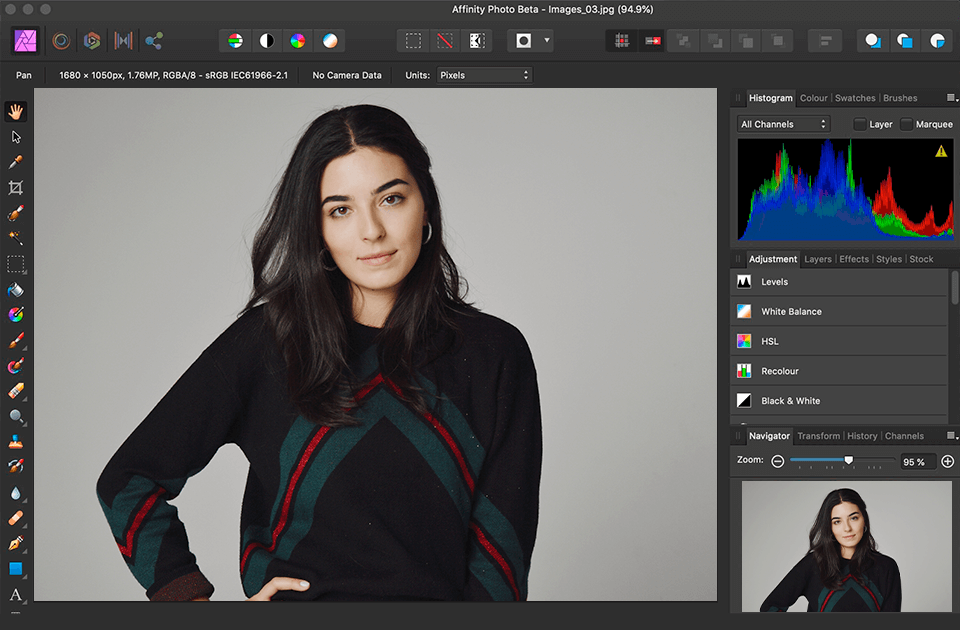
Paying for professional photo software makes sense when photography pays the bills.
It makes slightly less sense when you are still learning what the Highlights slider does.
Fortunately, Mac users in 2026 have plenty of capable free photo editors covering everything from quick colour corrections and social media graphics to RAW development, portrait retouching and full layer-based compositing.
There is one important catch.
“Free” can mean several things. Some applications are completely open source. Others provide a permanent free tier while reserving certain AI features or exports for paying users. A few let you edit freely but charge when you want specific high-quality outputs.
So rather than pretending every option has identical pricing, I have focused on what you can realistically accomplish before reaching for your credit card.
Here are ten of the best options for beginners, photographers and creators using a Mac.
1. Apple Photos
Best for: Beginners who want simple editing without installing anything
The most underrated free Mac photo editor may already be sitting in your Dock.
Apple Photos offers much more than cropping and filters. You can adjust exposure, highlights, shadows, contrast, white balance, selective colour, curves and sharpening, while newer versions also provide tools for removing distractions and imperfections. Your edits remain reversible, so experimentation does not destroy the original photograph.
That makes Photos an excellent starting point for beginners.
There are fewer opportunities to get lost, accidentally create seventeen layers or spend twenty minutes wondering why nothing is happening because you selected the wrong mask.
Best feature: Simple, non-destructive adjustments built directly into macOS.
If all you need is better light, cleaner colour and a straighter horizon, you may not need another application yet.
2. Evoto
Best for: Portrait photographers who want AI-assisted retouching
Evoto is considerably more specialised.
Instead of trying to become a replacement for every type of photo software, it focuses heavily on portrait editing, including skin retouching, facial adjustments, colour corrections and other people-specific tools.
For anyone searching for an AI photo editor for Mac, that focus can make the learning process much easier because you do not need to manually create a selection around every facial feature before making an adjustment.
Evoto’s pricing works differently from traditional free software. Editing tools can be used without consuming credits while you work, but exporting photographs that use certain AI features, including portrait retouching, consumes credits.
That means it is better described as free to edit and try, with paid usage for certain finished exports, rather than completely free software.
Best feature: Automating repetitive portrait retouching.
For headshots, portraits and people photography, it can save beginners from learning complicated retouching techniques before they have even learned where their Downloads folder went.
3. GIMP
Best for: Free Photoshop-style editing
GIMP is one of the strongest choices if you want traditional desktop photo editing without paying a subscription.
It supports layers, selections, masking, painting, compositing and detailed image manipulation. The current Mac release supports both Intel and Apple Silicon machines running macOS 11 or newer.
Unlike many freemium tools, GIMP is genuinely free software.
The trade-off is the learning curve.
Its interface makes considerably more sense once you understand how layers, masks and selections work, but it may initially feel like being handed the controls of a small aircraft because you mentioned enjoying travel.
Best feature: Serious layer-based editing without a subscription.
If you eventually want Photoshop-style skills, GIMP gives you plenty to practise with.
4. darktable
Best for: Beginners getting serious about RAW photography
darktable is closer to Lightroom than Photoshop.
It is designed around developing and managing photographs rather than building elaborate composites. You can organise images, process RAW files, correct exposure and colour, sharpen details and apply local adjustments.
In 2026, darktable 5.6 also introduced its first AI tools, including an AI object mask and a neural restoration module for tasks such as denoising and upscaling.
That makes it increasingly interesting for photographers who want a completely free RAW workflow without abandoning modern automation.
Best feature: Powerful RAW development with no subscription.
There is a learning curve, but darktable now provides beginner-oriented workflow guidance specifically designed to make those first edits less intimidating.
5. Photopea
Best for: Photoshop-style editing without installing software
Photopea is impressive largely because of what you do not need to do.
No installer.
No massive application.
No immediate subscription request.
It runs directly inside your browser while still supporting layers, masks, blending and PSD files. Photopea states that processing happens locally on your device rather than requiring every image to be uploaded to a remote editor.
That makes it particularly useful for creators who occasionally need more advanced edits but do not want heavyweight software permanently occupying their Mac.
Best feature: A surprisingly capable Photoshop-like environment inside a browser.
If somebody emails you a PSD and you simply need to change one thing, Photopea may save you from turning that one thing into an entire software-purchasing decision.
6. RawTherapee
Best for: Photographers who care about RAW image quality
RawTherapee is another genuinely free, open-source option aimed specifically at RAW development.
Version 5.13 was released in July 2026 and remains available for macOS. Its processing engine supports non-destructive editing, advanced demosaicing and extensive control over colour and detail.
It is more technical than Apple Photos and less design-oriented than Canva.
That is precisely the point.
RawTherapee is built for photographers who want to understand how a RAW file is actually being developed.
Best feature: Detailed RAW processing without paying anything.
Beginners may need time to become comfortable with the interface, but anyone serious about photography can learn a tremendous amount from using it.
7. Canva
Best for: Creators, bloggers and social media content
Canva is not where I would process 500 RAW wedding photographs.
It is where I would go when one finished photograph needs to become an Instagram graphic, advertisement, YouTube thumbnail or promotional banner.
The free Canva plan provides access to its core design and editing environment, while some more advanced AI capabilities such as Magic Edit, Magic Eraser and Background Remover can require Canva Pro depending on the feature.
That distinction matters if you are specifically looking for completely free editing.
Even without every premium AI tool, Canva remains exceptionally useful for creators because photo editing and graphic design happen in the same workflow.
Best feature: Turning photographs into finished content quickly.
It is less digital darkroom, more creative production desk.
8. Adobe Express
Best for: Quick edits and marketing content
Adobe Express takes a similar approach.
Instead of trying to replace Photoshop, it focuses on accessible photo, video and design tools for people creating content quickly.
Adobe currently offers an Express Free plan with standard photo editing tools, templates, fonts, stock assets and 5GB of storage.
For creators, that is plenty for basic promotional imagery, resizing, social graphics and straightforward visual adjustments.
Best feature: Beginner-friendly Adobe tools without immediately paying for Creative Cloud.
It is especially useful if Photoshop looks like overkill for the job in front of you.
Because sometimes you need to brighten a photograph and add a headline, not launch a professional compositing operation.
9. Pixlr
Best for: Browser-based AI editing
Pixlr combines traditional online photo editing with a growing collection of AI tools.
Its browser platform includes ordinary adjustments alongside tools for background removal, object removal, generative fill and image expansion. Pixlr currently provides free access while also offering premium plans with additional AI credits and features.
For beginners, the biggest advantage is accessibility.
You can open the site and begin editing without first deciding whether you understand enough photography to justify downloading professional software.
Best feature: Fast AI-assisted edits from virtually any modern browser.
It is particularly useful for occasional editing, content creation and images that need quick visual clean-up rather than an elaborate RAW workflow.
10. Krita
Best for: Creative photographers, illustrators and mixed-media artists
Krita is primarily known as a digital painting application, but it can also be surprisingly useful for photo-based creative work.
It supports layers, brushes, selections and compositing, making it useful for photographers who combine images with illustration or more artistic manipulation.
Krita remains free and open source, and version 5.3.3 was released for macOS in July 2026.
This is not the tool I would choose purely for correcting 300 RAW files.
It is much more interesting if your photograph is only the beginning of the finished artwork.
Best feature: Excellent brush and creative compositing capabilities at no cost.
Photography and illustration do not always need to live in separate applications.
Which Free Mac Photo Editor Should You Choose?
The easiest way to choose is to ignore the longest feature list and ask what you actually edit.
Choose Apple Photos for everyday corrections.
Choose Evoto for portrait retouching and people photography.
Choose GIMP for layers, masks and more advanced manipulation.
Choose darktable for a free photography workflow centred around RAW files.
Choose Photopea when you want Photoshop-style editing inside a browser.
Choose RawTherapee for technically detailed RAW development.
Choose Canva for social media and finished content.
Choose Adobe Express for quick design-focused editing.
Choose Pixlr for accessible browser-based AI tools.
Choose Krita when photography overlaps with illustration and digital art.
And remember that free software does not need to become your forever software.
Beginners are sometimes afraid to start with one program because they worry they will eventually have to switch.
You probably will.
That is normal.
The important skills transfer: learning to recognise good exposure, believable colour, natural skin, distracting backgrounds and excessive sharpening matters far more than memorising where one application’s sliders happen to live.
The best free Mac photo editor is ultimately the one that lets you spend more time improving photographs and less time fighting the software.
Your bank account will probably appreciate that approach too.